
This article contains affiliate links — if you download through them we may earn a commission at no extra cost to you.
Google Play is the obvious way to get apps into LDPlayer, and most of the time it’s the right one. But it isn’t the only one — and on some days it isn’t even the working one.
When you’d need an alternative
Three situations come up again and again: the app is geo-restricted and Play won’t show it to you, you need an older version because the newest one broke something, or Play sign-in simply refuses to cooperate. Any of those, and the methods below get you moving again.
All of them assume LDPlayer is already up and running — if you haven’t got that far, start with installing LDPlayer on Windows first.
Install from an APK file
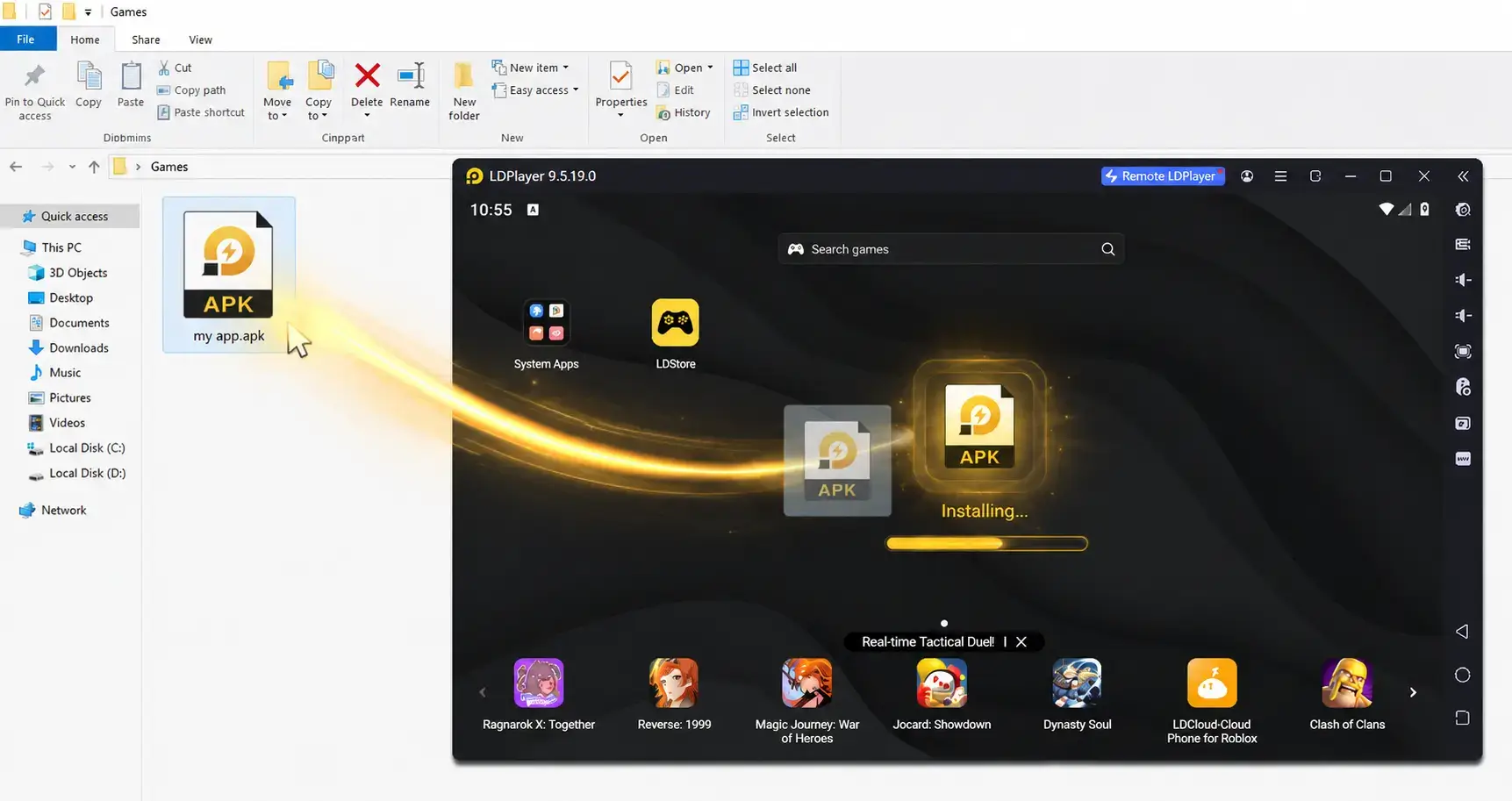
An APK is just an Android app in a single file, and LDPlayer takes it the easiest way imaginable: drag the file from Windows Explorer straight onto the emulator window and drop it.
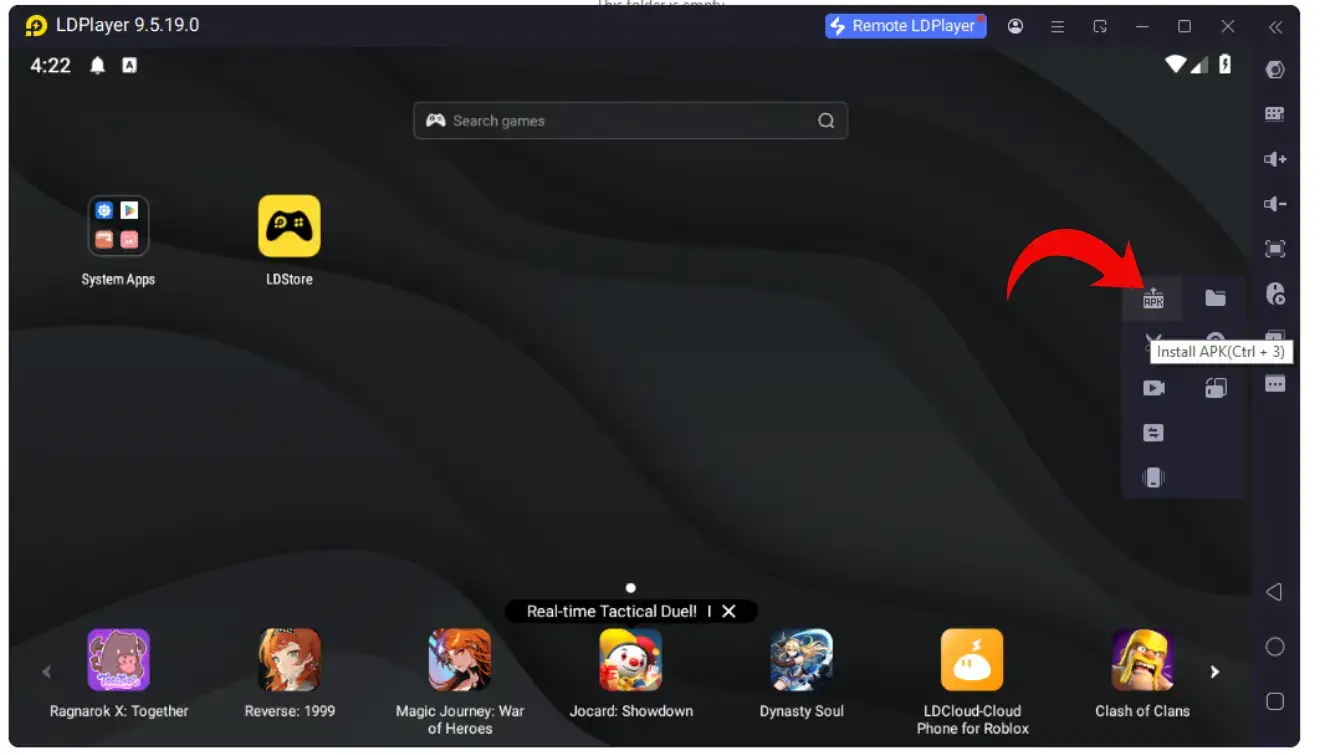
If dragging feels fiddly, use the button instead — the right-hand toolbar has an Install APK icon (shortcut Ctrl + 3) that opens a normal file picker.
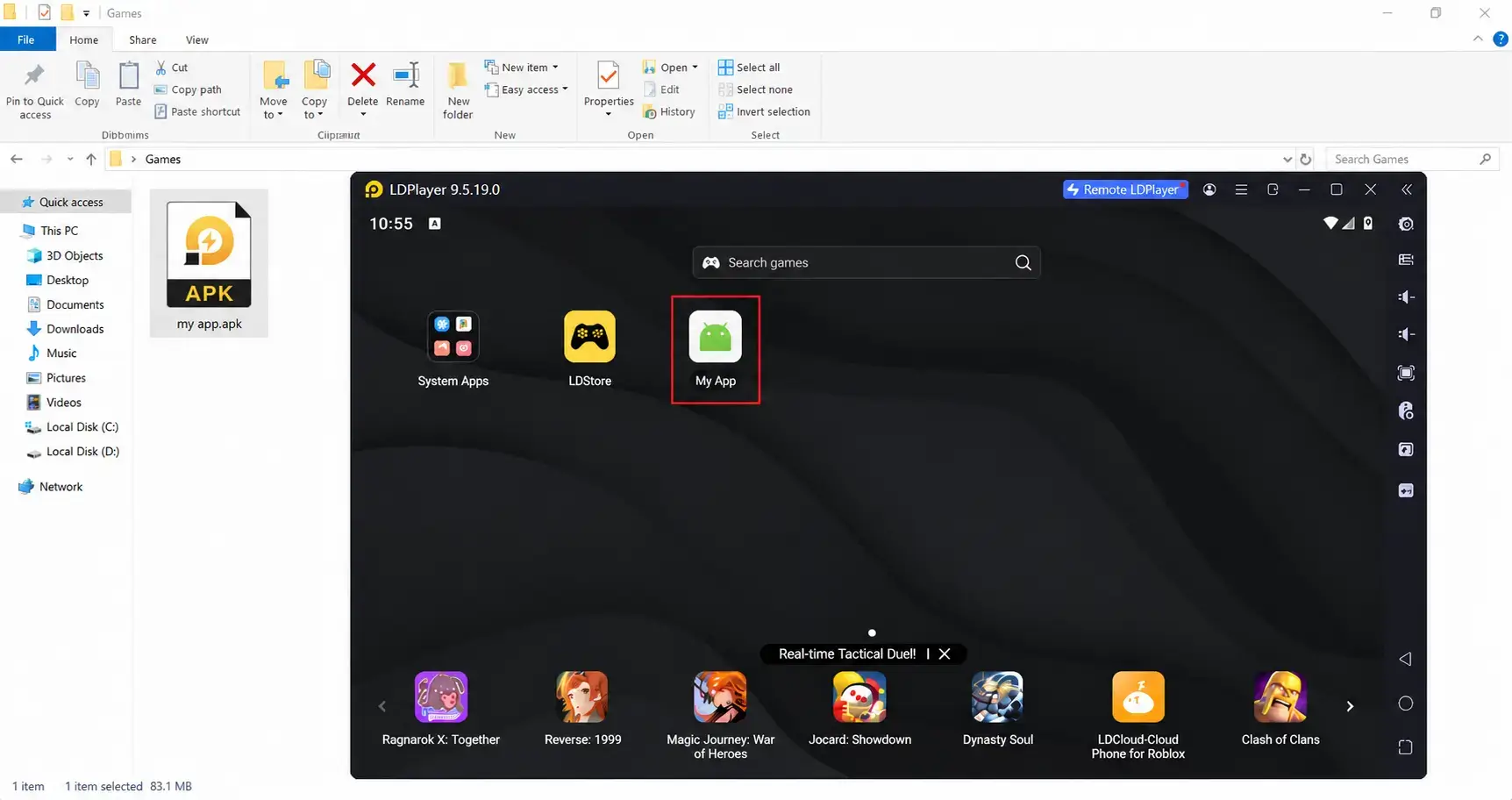
Either way you get an “Installing…” animation for a few seconds, then the app lands on the home screen ready to open.
Install XAPK packages
Big games often ship as XAPK instead — one package holding the APK plus the OBB data files (the graphics and audio that push a game past 2 GB). Installing an APK alone for those games gets you an app that opens and immediately asks to download several gigabytes.
LDPlayer handles XAPK natively, so nothing extra is needed. Use the same Install APK button, then switch the file-type dropdown in the picker to xapk — otherwise your file won’t be listed.
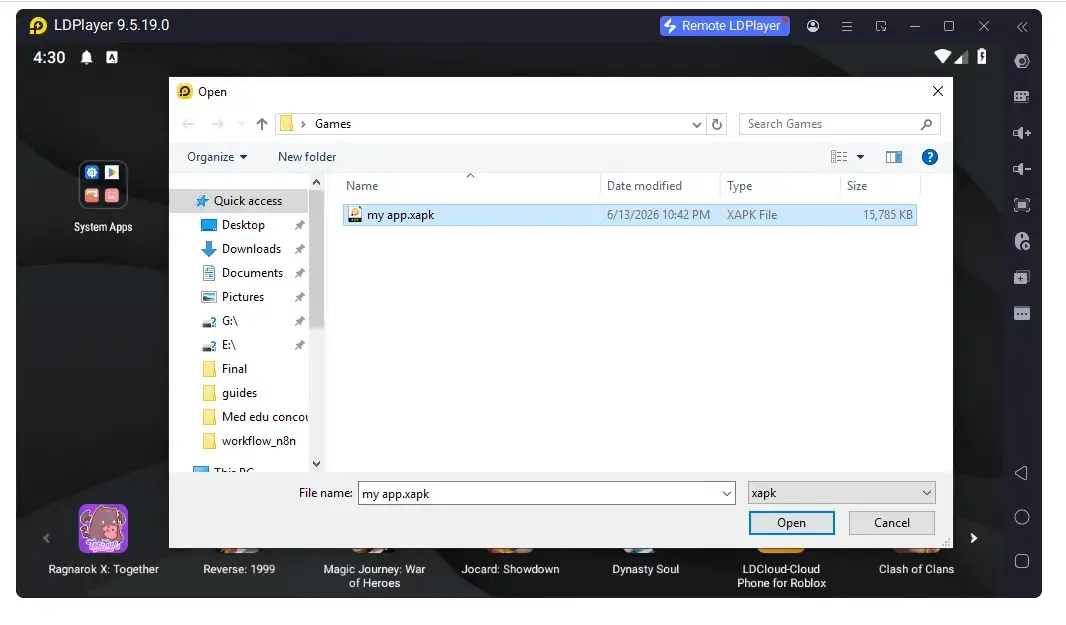
Expect it to take longer than a plain APK: the emulator unpacks the OBB data and copies it into place, and on a 15 GB package that’s a genuine wait, not a freeze.
Use the built-in LD Store
LD Store comes bundled with LDPlayer, so you can download games on your PC without signing into Google Play at all. It’s the quickest route when Play Store keeps throwing errors, or when the game simply isn’t listed in your country.
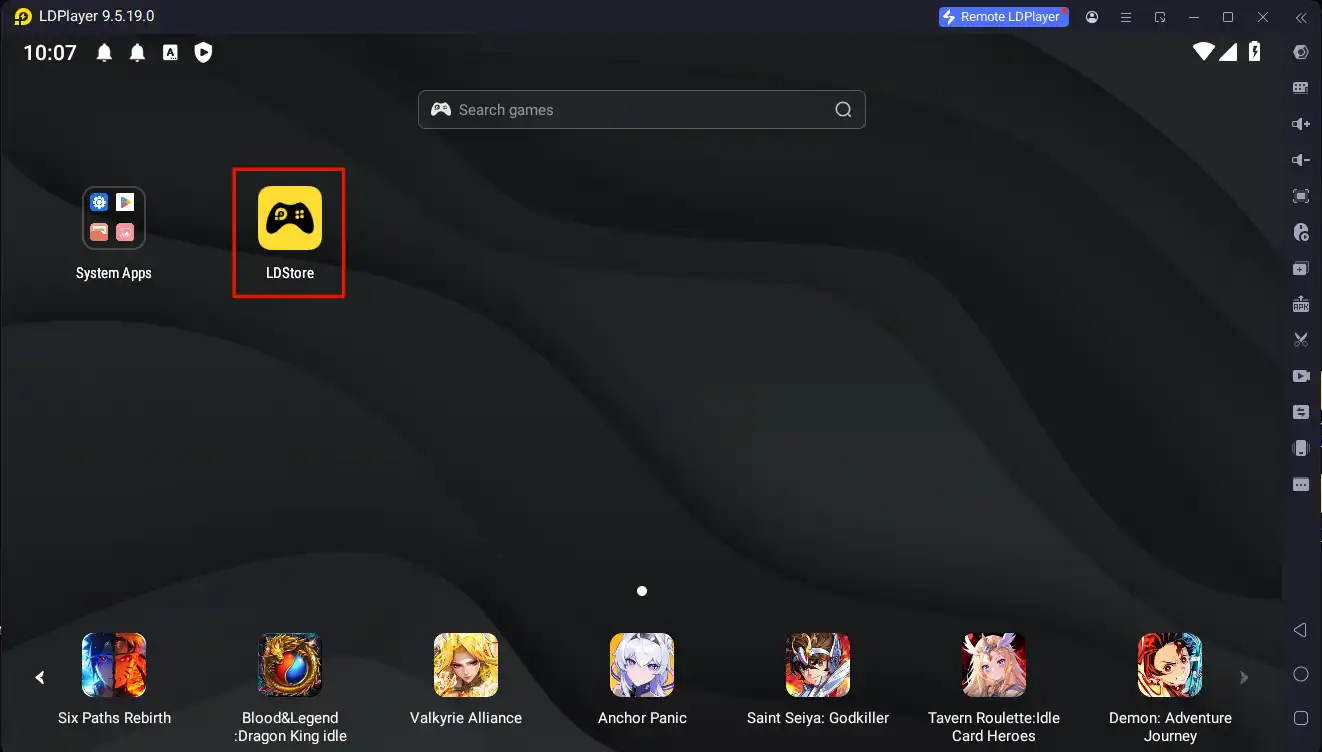
Step 1 — open LD Store from the emulator home screen. The yellow gamepad icon labelled LDStore sits right next to the System Apps folder.
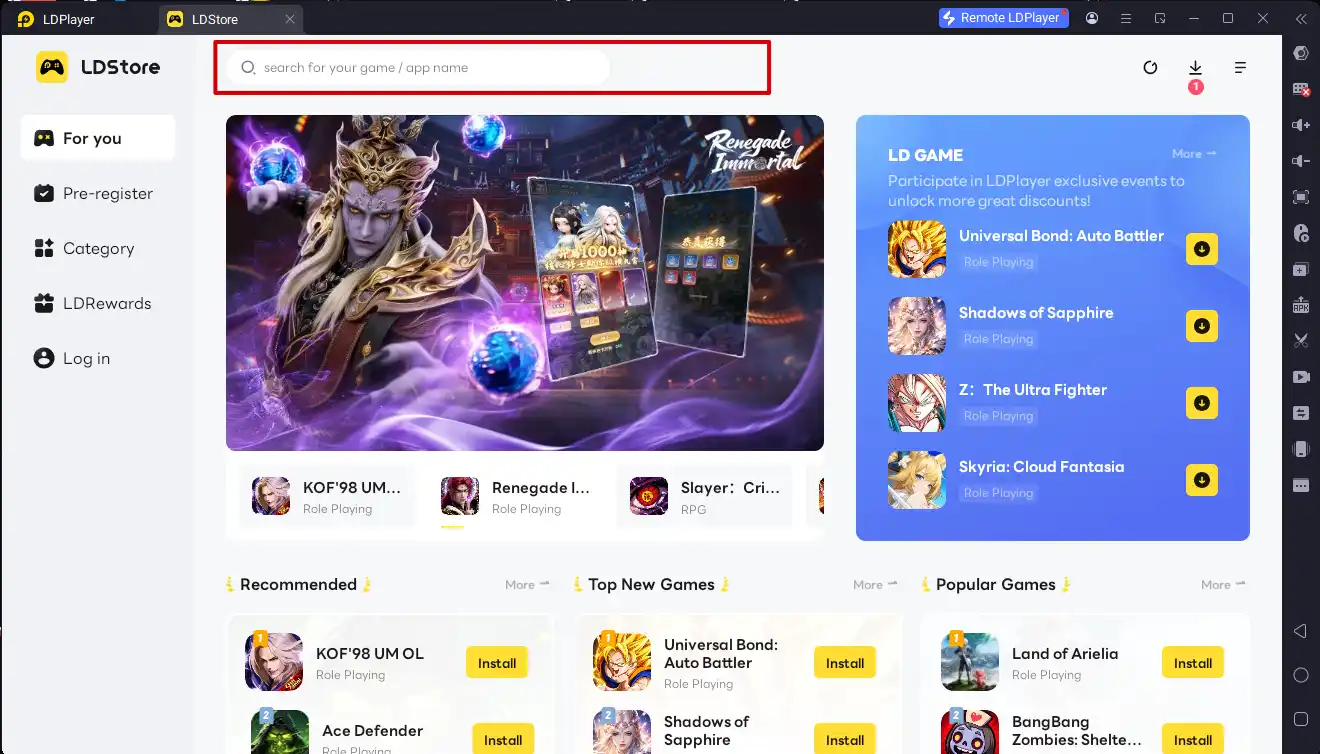
Step 2 — search for the game. Type the name into the search bar at the top. The store also groups titles under Recommended, Top New Games and Popular Games if you’d rather browse than search.
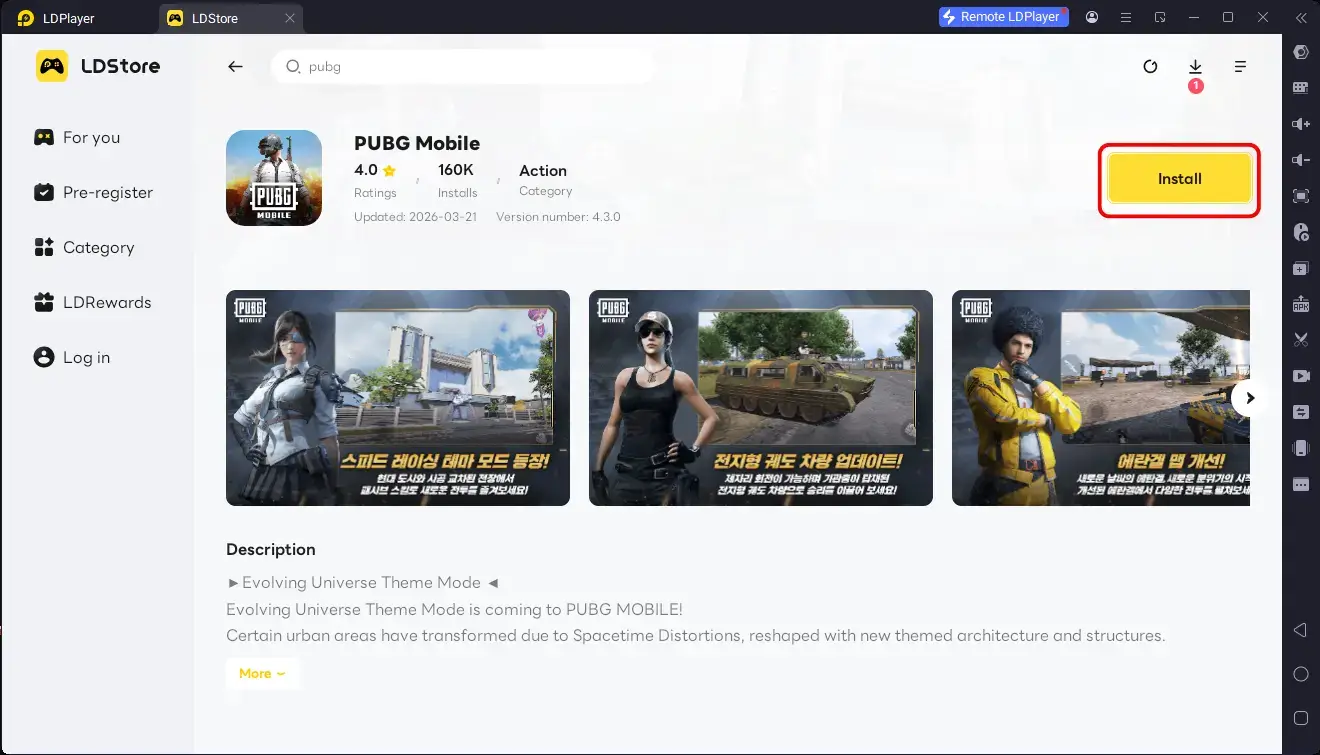
Step 3 — click Install. Open the game’s page and hit the yellow Install button. The download runs inside the emulator, and the game lands on the LDPlayer home screen when it’s done — no APK file, no Google account.
Worth knowing: LD Store leans heavily toward games. For everyday apps — messaging, streaming, productivity — you’ll usually still want Google Play or an APK file.
Safety notes
An APK from the wrong place is malware with an app icon on it. Stick to well-known mirrors like APKMirror or APKPure, which verify that a file is signed by the same developer certificate as the Play Store release.
Two habits worth keeping:
- Be suspicious of “modded”, “premium unlocked” or “hacked” builds. Someone modified that file and didn’t do it for your benefit.
- Check the file size against the Play Store listing. A 3 MB “PUBG Mobile” is not PUBG Mobile.
And keep the emulator separate from your real life: a secondary Google account inside LDPlayer costs nothing and limits the damage if an app turns out to be less than honest.
Installed something and it won’t open, or closes a second later? That’s usually a memory or renderer issue rather than a bad file — the troubleshooting guide walks through both. And if the app runs but drags, our performance guide covers the settings that actually move the needle.