
This article contains affiliate links — if you download through them we may earn a commission at no extra cost to you.
Most LDPlayer failures come down to a handful of causes, and each one leaves a recognizable symptom. Find yours below and apply the matching fix — no need to reinstall everything blindly.
Black screen after launch (or instant crash)
Nine times out of ten this is a graphics problem, not a broken install.
- Open LDPlayer’s Settings → Graphics settings (if the window opens at all) and switch the renderer: if it’s on OpenGL, try DirectX — and vice versa. This alone fixes most black screens.
- If that doesn’t help, update your GPU driver from the manufacturer’s site (NVIDIA, AMD or Intel). An outdated driver is the classic cause of a window that opens and stays black.
- On dual-GPU laptops, force the dedicated card: Windows Settings → System → Display → Graphics, add LDPlayer, set High performance.
Stuck at 50% loading
This is almost always a virtualization conflict:
- Hyper-V is fighting LDPlayer. If a “Hyper-V is still enabled” prompt appears, click Fix. To turn it off manually: search “Windows Features” in the Start menu and uncheck Hyper-V, Virtual Machine Platform, Windows Hypervisor Platform and Windows Sandbox, then restart. Or run this in Command Prompt as administrator and reboot:
bcdedit /set hypervisorlaunchtype off
- Google Play Games (the PC app) quietly re-enables Hyper-V every time it runs. If LDPlayer got stuck right after you used it, restart the PC and it should load normally again. If you use both apps regularly, this restart dance will keep coming back — worth knowing before you blame the emulator.
- VT is off. Check LDPlayer’s Diagnostics information — if the VT row doesn’t read On, enable it in BIOS (see our installation guide for the steps).
Stuck at 94% on first launch
This one usually means some emulator files got corrupted during install. Instead of reinstalling, open LDMultiPlayer (installed alongside LDPlayer), create a new instance, and launch that. The fresh instance skips the damaged files entirely — faster than a full reinstall and your download isn’t wasted.
VT is enabled in BIOS but LDPlayer says it isn’t
First confirm Windows itself sees VT: open Task Manager → Performance → CPU — the “Virtualization” line should say Enabled.
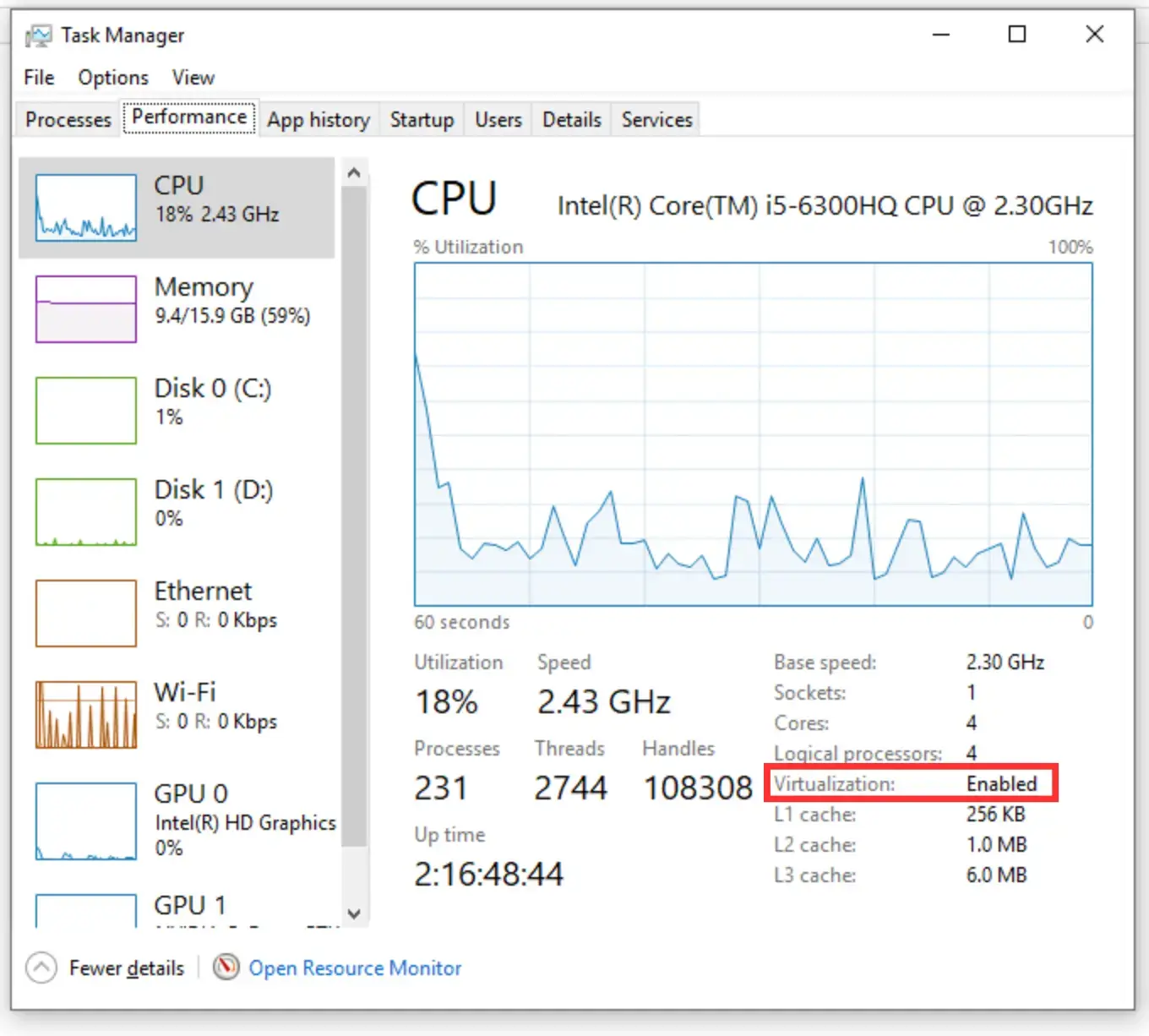
If it does, some security software is grabbing hardware virtualization for itself and won’t share. Avast and Bitdefender are the usual suspects. Look inside your antivirus settings for an option like “hardware-assisted virtualization” and disable it, then restart. Windows’ own Core Isolation / Memory Integrity feature (in Windows Security → Device security) can do the same thing.
LDPlayer won’t start at all
Test whether your antivirus is the blocker: disable it for five minutes and try launching. If LDPlayer starts, don’t leave the antivirus off — add LDPlayer’s folder to its exceptions list and re-enable protection. In most antivirus suites the exceptions list lives under Menu → Settings → Exceptions.
Apps crash inside the emulator
If LDPlayer itself runs fine but a specific app keeps closing, give the instance more memory (Settings → Advanced, 4096 MB or more) and make sure you’re on the 64-bit version of LDPlayer — some newer games simply refuse to run on the 32-bit build.
Running but still slow or stuttering? That’s a different problem with different fixes — see our performance optimization guide .