
This article contains affiliate links — if you download through them we may earn a commission at no extra cost to you.
If LDPlayer feels sluggish, stutters in games, or takes forever to boot, the fix is rarely “buy a new PC”. In most cases one of the six settings below is the culprit — and the first one alone solves the majority of lag complaints.
1. Enable Virtualization (VT) — fixes most lag on its own
Without VT, LDPlayer can’t use your CPU properly and everything crawls. Check it first: click the menu button in LDPlayer’s top-right corner and open Diagnostics information — the VT row should carry a green check and read On.
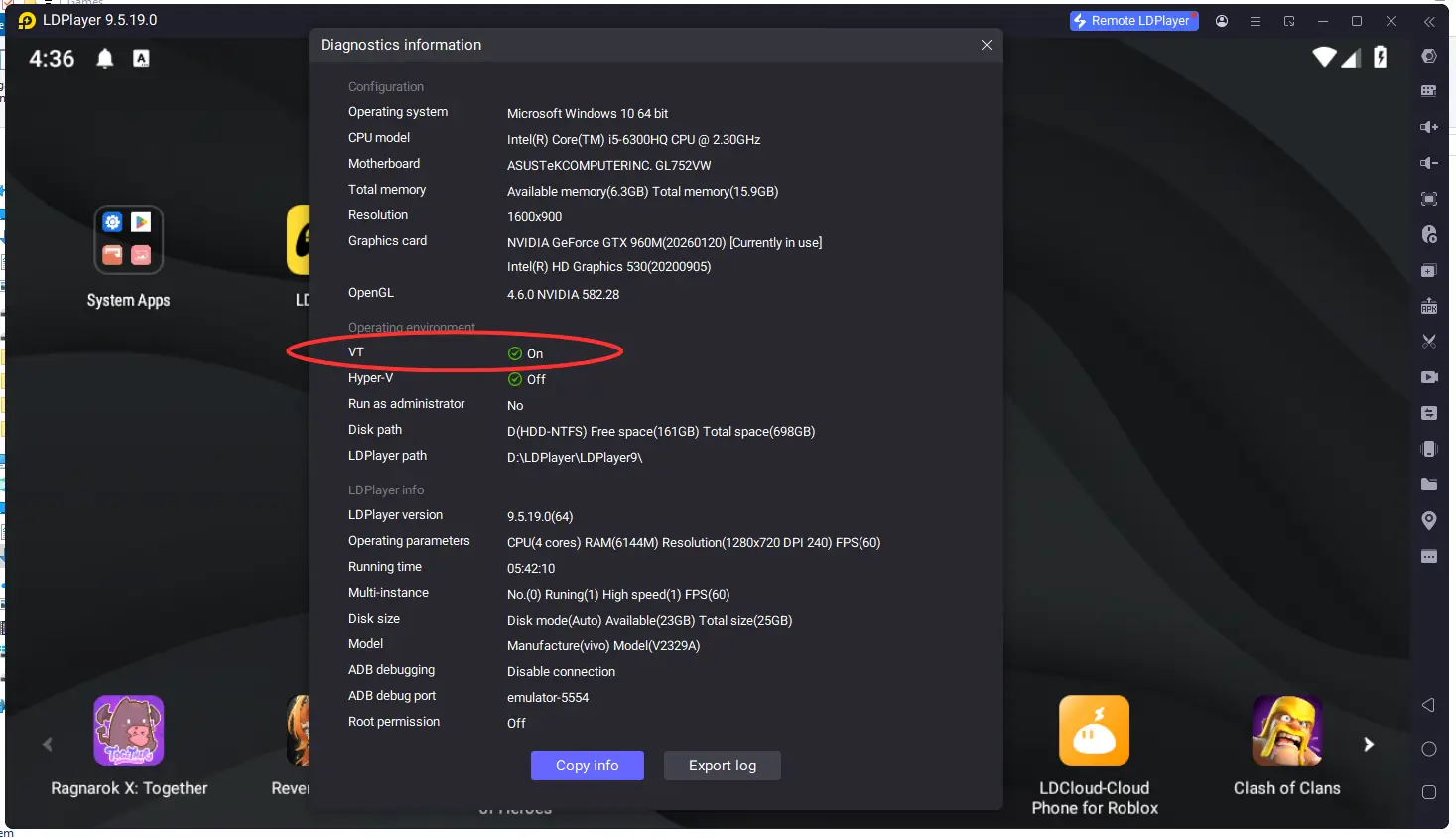
The same window is worth a longer look — it also reports your graphics card, total memory, and the CPU and RAM currently assigned to the instance. Handy when you’re deciding what to change next.
If it doesn’t, restart your PC and enter the BIOS (usually by tapping F2, F10 or Del during startup). Look for Intel VT-x, AMD-V or SVM Mode — the name depends on your CPU — enable it, save, and boot back into Windows. It sounds intimidating the first time, but it’s a two-minute job.
One catch: some antivirus tools (Avast is a known offender) grab hardware virtualization for themselves. If VT is on in BIOS but LDPlayer still reports it disabled, look for a “hardware-assisted virtualization” option inside your antivirus and turn it off.
2. Use the CPU and RAM values LDPlayer recommends
Open Settings → Advanced. Since LDPlayer 9 both dropdowns carry a (recommended) label, and those values are worked out from your actual hardware. On the quad-core i5 laptop with 16 GB pictured below, that’s 4 cores and 6144M. Leave them as they are — the panel says so itself: “Recommend to use default settings.”
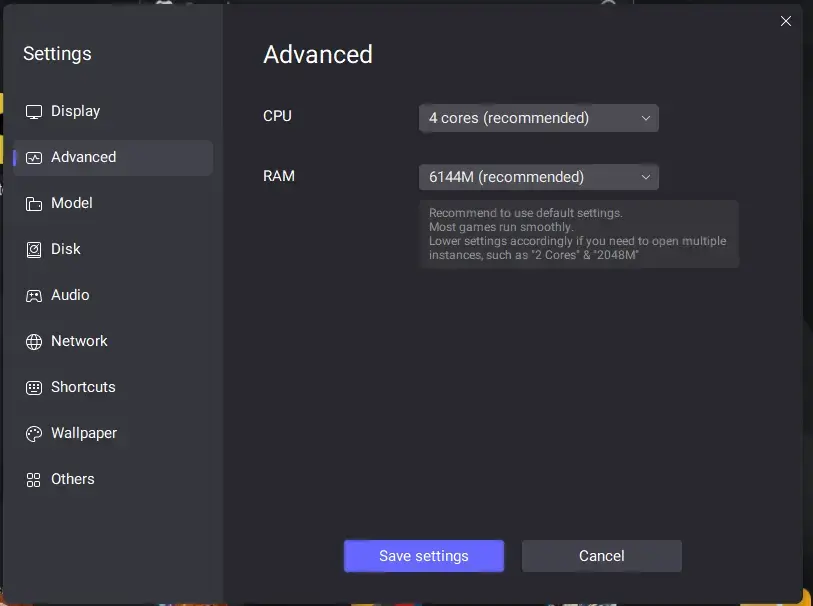
Notice that on a 4-core machine LDPlayer happily recommends all 4 cores. That’s deliberate — Windows keeps scheduling its own work on them anyway, so this isn’t the land grab it looks like.
One case calls for going lower: running several instances at once. LDPlayer suggests 2 cores and 2048M each in that scenario, and it’s right — four instances on default settings just fight each other for the same CPU.
Memory is where restraint actually matters. Pushing RAM past the recommended figure leaves Windows short, and then the whole system stutters, emulator included. Maxing out that dropdown is the most common “optimization” that makes things slower.
3. Pick the right renderer for your graphics card
Same menu, Graphics settings: choose DirectX if you’re on integrated graphics or an older card — it’s the more stable option. Switch to OpenGL if you have a modern dedicated GPU — it’s usually faster.
While you’re at it, make sure Windows actually gives LDPlayer the good GPU: Windows Settings → System → Display → Graphics, add LDPlayer, and set it to High performance. Laptops with dual GPUs love to quietly run emulators on the weak integrated chip.
4. Lower the resolution and cap the frame rate sensibly
Resolution is the single biggest FPS lever. 1280×720 is plenty for most games on a laptop screen; drop to 960×540 on a low-end machine. Only go 1080p+ if your PC clearly handles it.
Set the frame rate to 60 FPS unless you have a strong PC and a high-refresh monitor — asking a weak machine for 120 FPS just produces uneven stutter instead of smoothness.
5. Stop Windows from throttling the emulator
The default “Balanced” power plan lowers your CPU clock to save energy, which causes micro-stutters. Switch to High performance: Control Panel → Power Options. On a laptop, also plug in the charger while playing — most laptops throttle hard on battery.
Close heavy background apps (browsers with 30 tabs are the usual suspect). For a further nudge, open Task Manager → Details, find Ld9BoxHeadless.exe, right-click → Set priority → High.
6. Keep LDPlayer updated
Each release ships performance fixes, and an old version can undo everything above. Update from the built-in updater or grab the latest installer — your apps and settings survive the upgrade.
Work through the list in order: VT first, then resources, then graphics. If it still lags after all six, the bottleneck is genuinely the hardware — see our installation guide for the minimum specs worth having.
A last distinction worth drawing: slow is not the same as broken. If LDPlayer won’t start, hangs on the loading bar, or shows a black screen, none of the six fixes above apply — head to the troubleshooting guide instead.